
Bank Statement Screenshot to Excel
Drop a screenshot or phone photo of your bank statement and get a clean Excel, CSV, QuickBooks (.qbo) or OFX file. The text is read with OCR on your own device — the image is never uploaded — and every row is checked against the running balance.
How it works — a real example
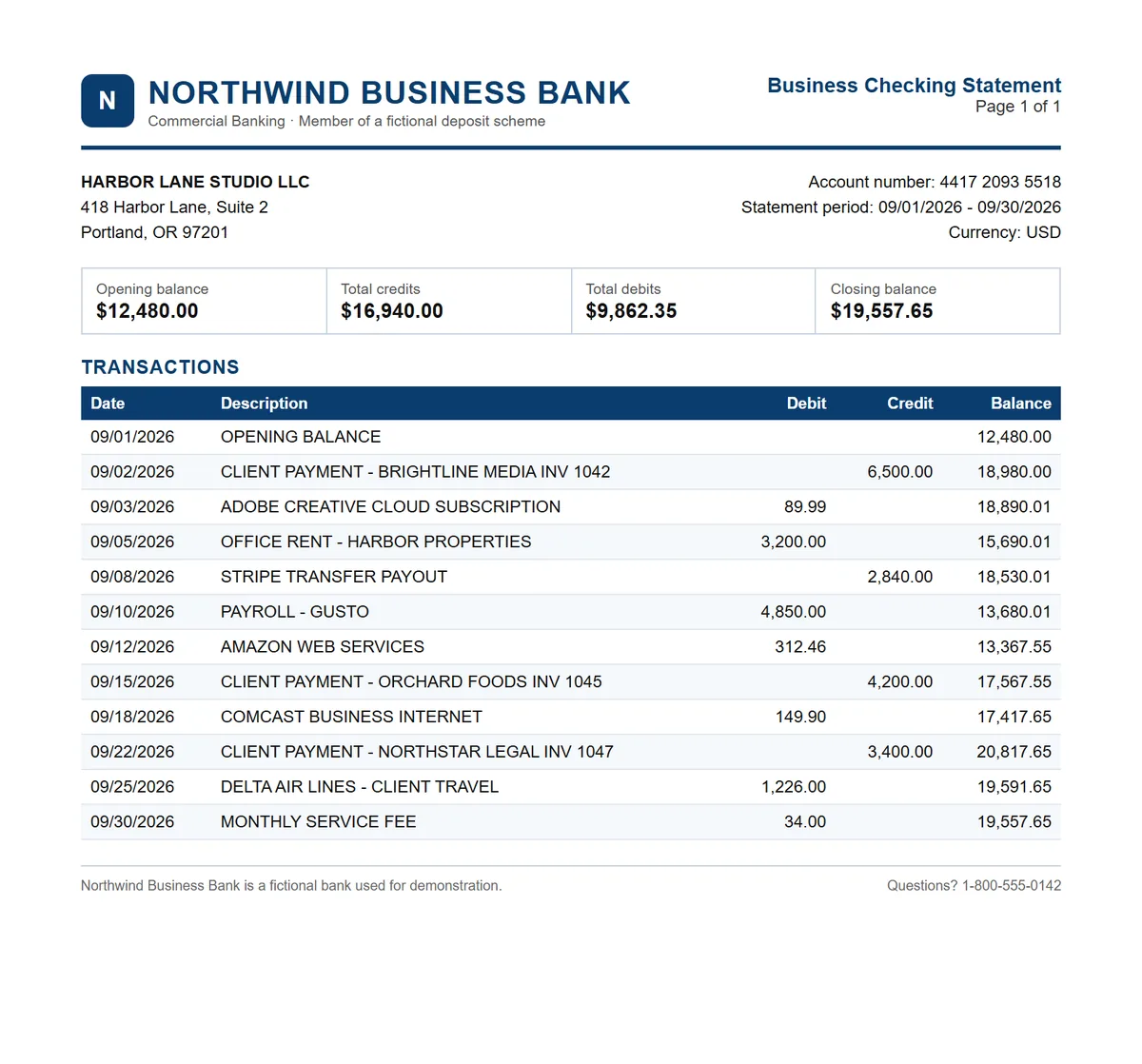
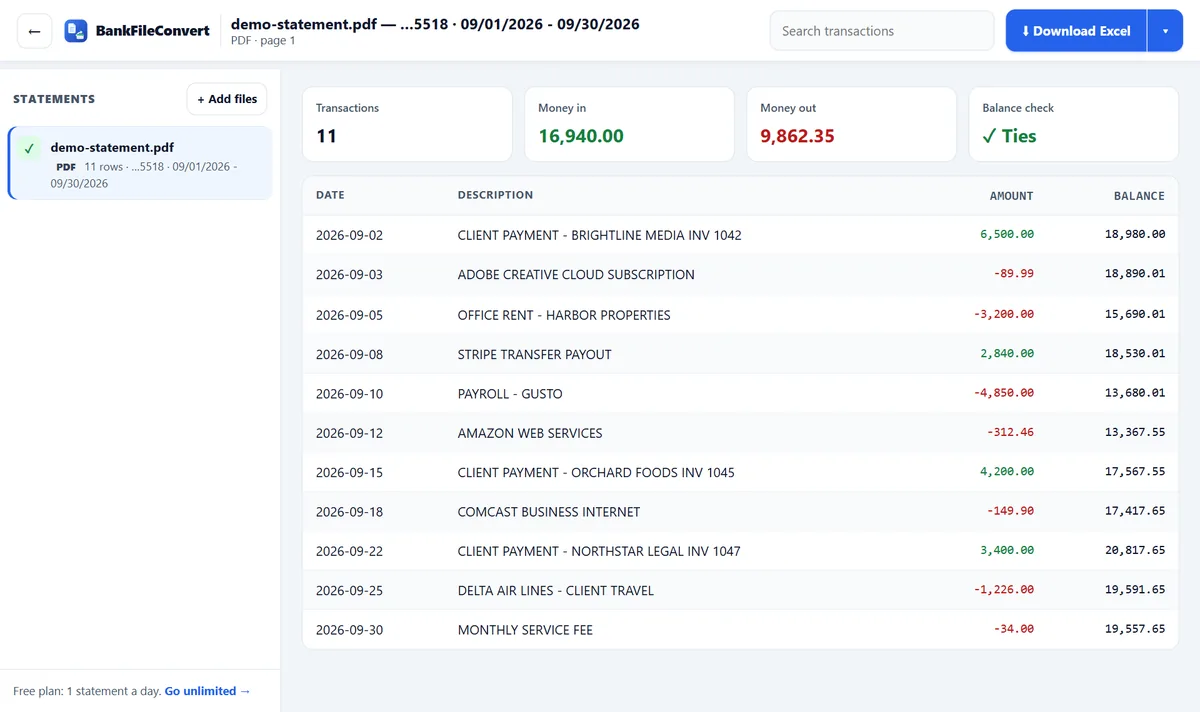
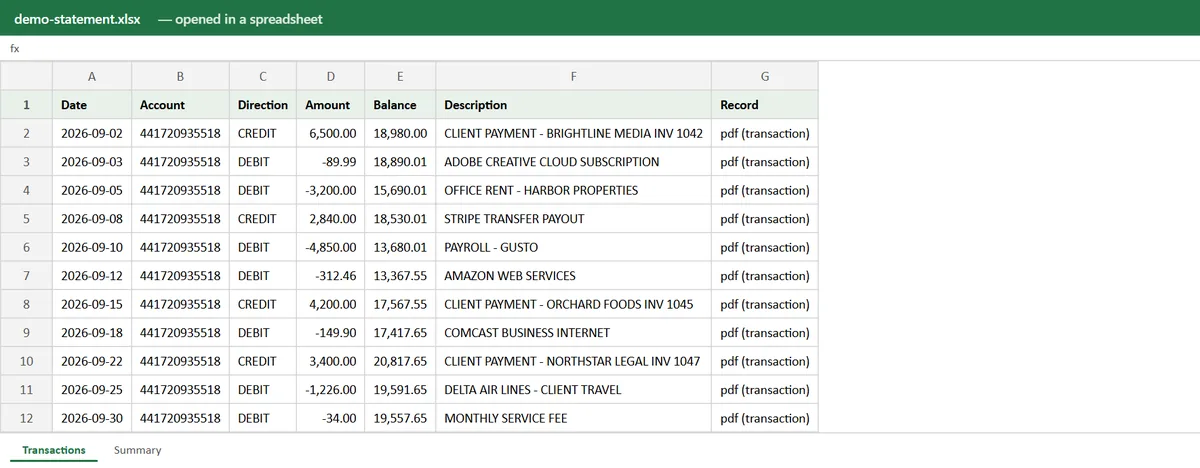
The bank in step 1 is fictional; steps 2 and 3 are this tool's real, unedited output for that PDF.
When a screenshot is all you have
Plenty of statements never arrive as a usable file. A banking app only shows a scrolling list, a client sends a photo of a paper statement, or the bank's portal offers nothing but a print view. Typing those rows into Excel by hand is slow and error-prone. This page reads the image instead: drop the screenshot and you get one spreadsheet row per transaction, with date, description, amount, direction and the running balance in their own columns.
How it reads the image
- OCR on your device. The open-source Tesseract engine runs inside your browser tab. Its English language data is fetched once from this site and cached; your image is never sent anywhere.
- Rows from positions, not templates. Each recognised word keeps its position on the image. Words on the same line are joined into a row, and columns are found where the dates and amounts line up — the same layout engine the PDF converter uses.
- Debits and credits told apart. Separate Withdrawals / Deposits columns are kept apart and signed correctly; a single signed Amount column works too.
- Balance-checked. Opening balance plus each movement must equal the next printed balance. If OCR misread a digit, the check fails and names the exact row so you can fix it in seconds.
Getting the best result
- Screenshots beat photos. A screenshot from online banking has perfectly sharp text; a photo of paper should be flat, straight-on and evenly lit.
- Crop to the table. Menus, ads and logos are skipped automatically, but a tighter crop leaves less to misread.
- Keep the balance column in shot. It is what lets the tool prove every row is right.
- Have a PDF or CSV? Use it — a text-based PDF or a bank CSV is read exactly, with no OCR at all.
Frequently asked questions
Which images work?
PNG, JPG and WebP screenshots or photos of the transaction table. A straight-on screenshot from online banking or a banking app works best; a photo of paper works if it is sharp, flat and evenly lit.
Is the image uploaded for OCR?
No. The OCR engine and its English language data are downloaded once from this site and run inside your browser tab. The image is read on your own device and never sent anywhere.
How accurate is OCR on a statement?
Usually very good on clean screenshots, but OCR can misread a digit. That is why every row is checked against the statement's running balance, and the exact row is named when it doesn't tie. When your bank offers a PDF or CSV export, that is always exact.
Can I convert several screenshots of one statement?
Convert them one at a time and append the downloads, or drop them all at once and get one merged workbook with Pro.
Does it work with banking app screenshots?
Yes, as long as each transaction shows a date and an amount on the same line. Long scrolling screenshots are fine; crop away menus and headers for the cleanest result.